Open command prompt and run this command :
Powercfg /x -standby-timeout-ac 0
You can run this command with batch script and set it run on windows logon
Open command prompt and run this command :
You can run this command with batch script and set it run on windows logon
- Save it as "skip_windows_reg_optimizer_at_boot.reg".
- Super user one of client, copy the reg file into "c:\windows" then import the registry file.
- Shutdown the client and save the change made by super user.
Kredit & Source : Kroco Latoz ( https://tools-warnet.blogspot.com )
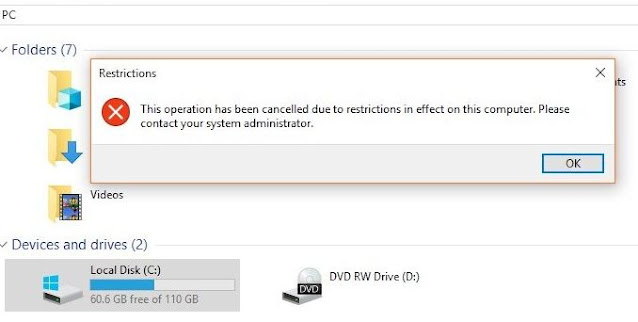
You can restrict access to drives in your computer with command prompt or with batch file. This is usefull when you dont want to edit your diskless image, but you already set batch command to run in task scheduller like in this tutorial : http://learningbytutz.blogspot.com/2020/01/fix-missing-tray-icon-automatically-for.html

Have you experienced this blue screen before in diskless environment ? . This BSOD usually occurred because there is conflicted driver for Intel Usb 3 for each mainboard in your diskless environment.
- First, turn off all protections in Windows Defender : Realtime-Protection, Cloud-delivered protection, Automatic sample submission, Tamper protection.

Mount the Client's Parent Image with CCBoot server console or with Windows Disk Management and delete CCBootPNPX.sys in "C:\Windows\System32\Drivers" folder. Don't forget to save the image after you did it.
Open Command Prompt with administrator rights, then type the following command :


